Contents
- The Home Router
- Android and ChromeOS
- iPhones and iPads
- PlayStation (PS4/ PS5)
- Windows, Xbox and Edge Browser
- Windows, Xbox, Android and ChromeOS Together
Getting started
In today’s world, screens are not just windows to entertainment; they are portals to education, social connection, creativity, and unfortunately, potential harm. For parents and caregivers, managing a child’s digital life often feels less like gentle guidance and more like navigating a constantly shifting battlefield.
The objectives are clear: foster healthy habits, protect from dangers, and empower children to become responsible digital citizens. However, the terrain is complex, the adversaries (from inappropriate content to big corporations, and malicious 3rd parties) are numerous, and the strategies required are multifaceted and ever evolving.
The information on this site doesn’t dictate the what, it covers the how and has been provided to make the technical aspects of screentime management as easy as possible.
Screentime and safety across a number of places
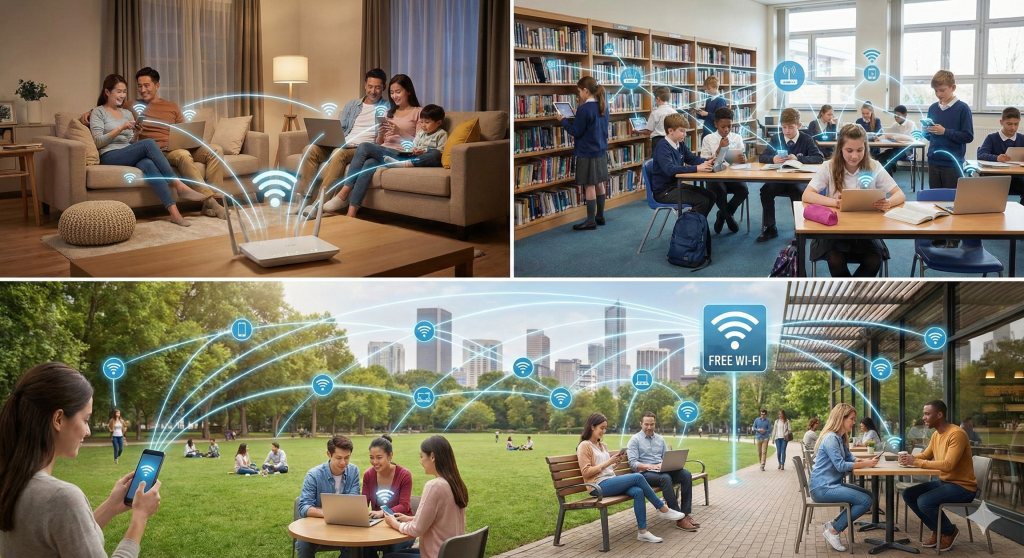
Home
Home routers are often sold with web filters and other advanced controls which help protect devices while they are in your home.
Some home routers can also manage WIFI access time and downtimes
School
School IT departments commonly roll-out Chromebooks and use Google Workspaces to manage security and privacy on those devices no matter where they are being used from.
Kids can also connect their own phones and laptops to school networks.
Public
Outside of controlled networks, each device connects directly to the internet or commonly via sometimes unsafe public WIFI.
The main challenge people hit is finding a solution that covers all three.
After years of battling both the technical and interpersonal challenges of managing screentime with my own kids, and supporting others, I recommend families and carers setup:
- Microsoft Family Safety: regardless of what other platforms and devices you use, the browser tracking and controls are rock solid and also work across all the platforms.
- For Android Phones, Google’s Family Link: to manage downtimes, time limits and app blocking primarily (location, bonus time, lockdowns, purchase controls etc all here as well).
- For iPhone, Apple’s Family Sharing and Parental Controls offers similar features to Google Family Link, in some areas it is better.
Remember, without coordination and some broader thought, each of these solutions will provide control only in that ecosystem (apple or google or microsoft). For younger children this will probably get you 80% there in managing screentime and safety. The real challenge comes when managing it across home, school and other platforms. What about xbox for example?
Once subscribed you will have access to in depth articles and how-to guides that will let you setup and control screentime and safety in the way you want. And if you are ever stuck, please feel free to reach out.
 Anthrop Tech