What does the setup process look like. How complex is it?
Don’t forget we can answer any specific questions you may have before or during setup. Your registration email will include more specific steps tailored to your device and profile.
Depending on the device is does change a little. Once subscribed and you let us know what devices, we will send you an email with next steps
– For Windows and Android we just send you a QR code to scan from the welcome screen of your new device.
– For Linux we send you an email to install the agent.
In Windows and Linux, if the device is for a child then you also want to set up user accounts with a Parent/Adult and admin and the child’s account as a standard user (linux – restrict root access). This way you control what apps are installed beyond what we block or install.

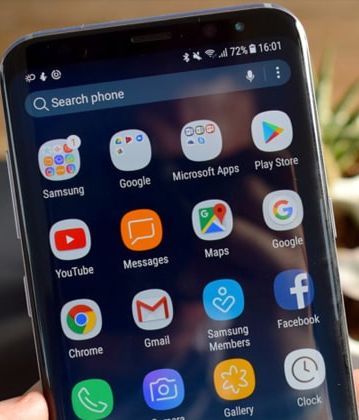
Once registered your device will start to apply settings and controls. What is added and removed depends on the profile selected.
On Android, pre-installed apps may be removed. e.g SMS and Phone for ‘Early Teen’ profile.
Some apps will be installed to support safer and more private device use. Or apps that allow parents to manage web filtering and monitoring.
And inside the core settings for the phone and some apps there will be settings changed to lock down certain functions for safety and privacy (e.g. USB tethering).
On Windows and Linux, pre-installed apps may also be removed. A number of operating system settings will be applied to enforce things like application security and firewalls regardless of the user or profile.
Login to your accounts and Apps.
If you are the admin for the device you can install any other applications you would like to use or allow others to use.
The end user can then login and start to login to apps and off they go!

